

Flyver guide
How to write a curation
Getting started
On the Curation tab of your profile, tap [+] at the right end of the tab row. You can start in two ways.
- Start blank: write on an empty page.
- Write from a past trip: pick a trip that has ended and you get a draft with its places in order under Day headings. The photos of yours linked to those places come along.
Only places move into the draft. Flights, stays, memos and expenses do not. [Write a curation] in the ⋯ menu of a trip makes the same draft, and one trip makes one post.
Posts you have not finished are kept under Drafts on the Curation tab. The first time you open the editor, four short tips appear.
![The two ways to start after tapping [+]](/flyver/guide/guide-01-start-sheet.webp)
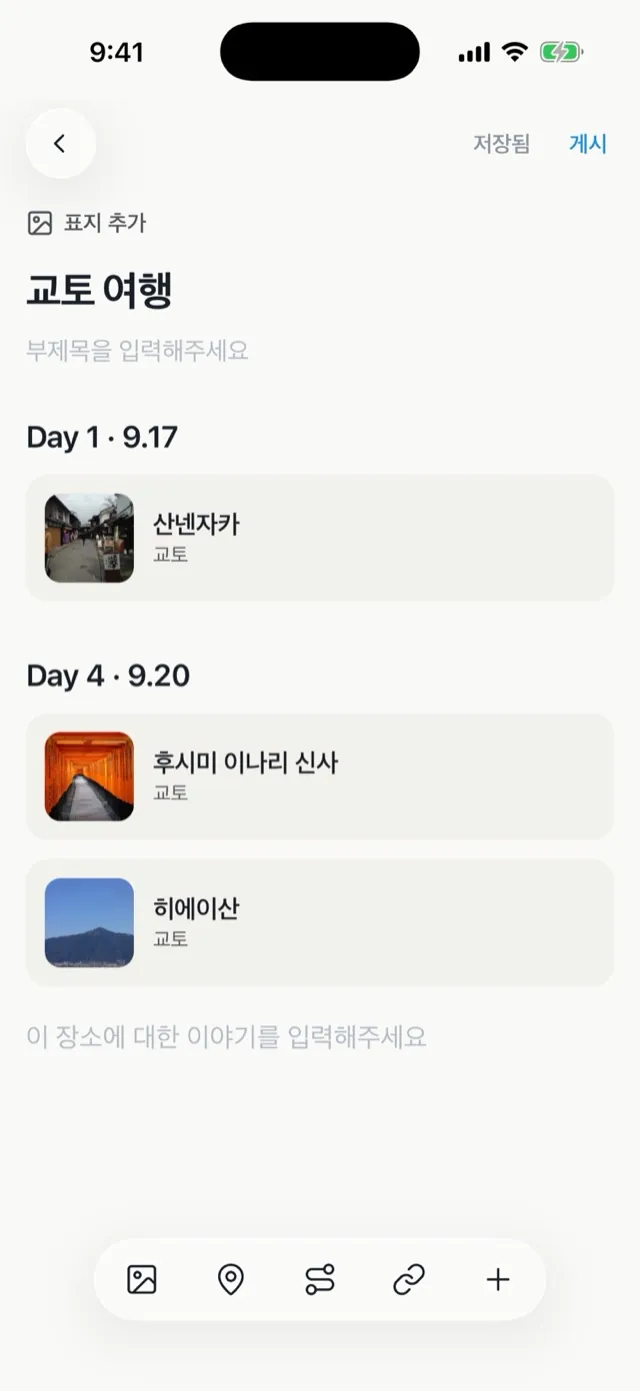
Cover and title
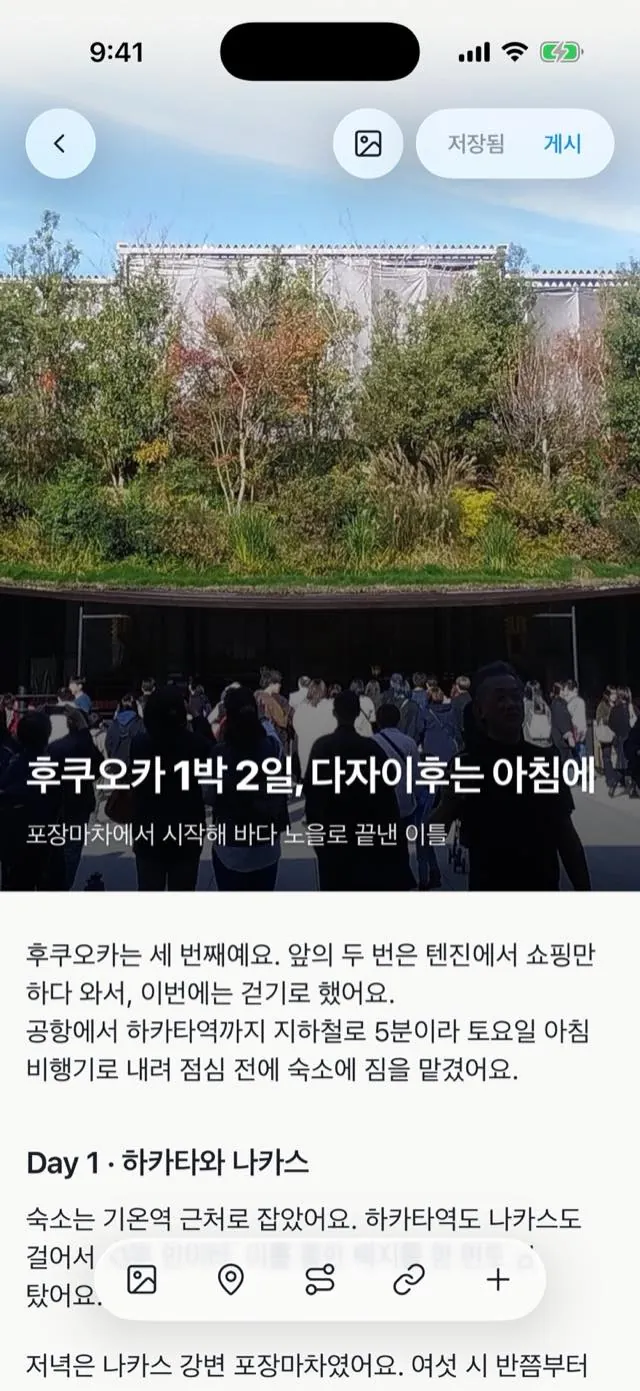
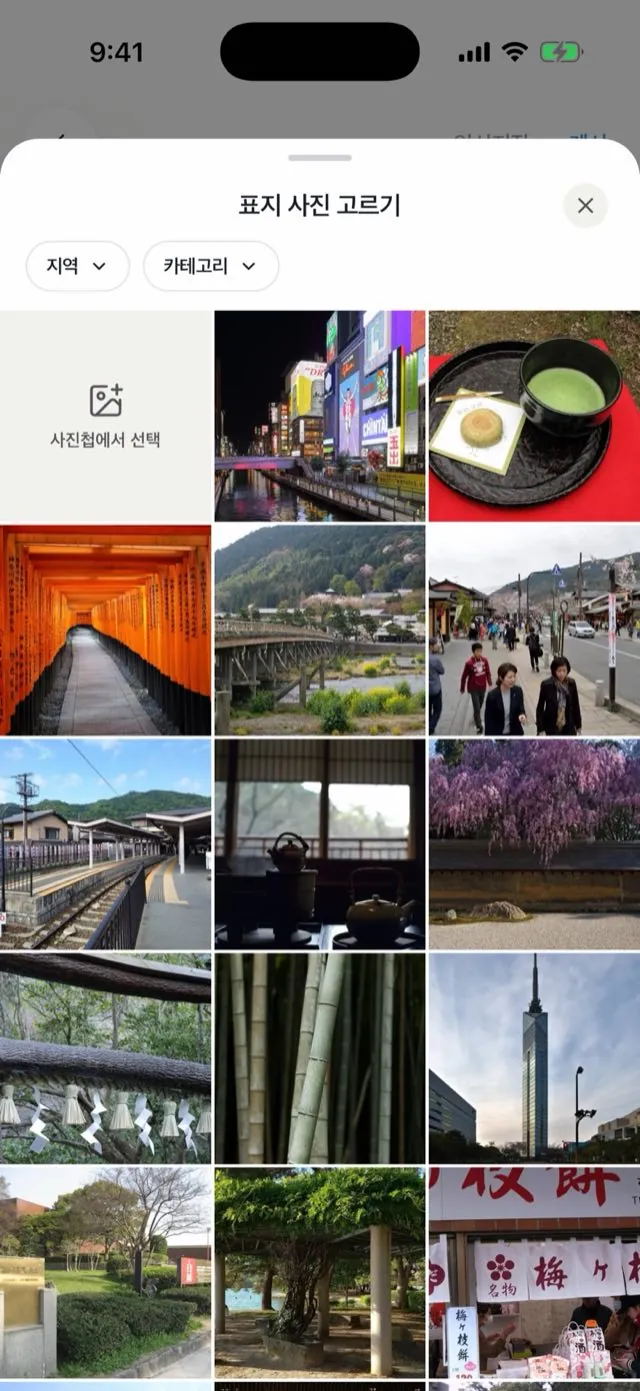
Tap [Add cover] at the top. Upload a photo from your phone with the first cell, [From your library], or pick one of your records below it. The cover is the only place you can pick straight from the library.
To use a photo from the body as the cover, tap it and choose [Use as cover].
- Title: up to 50 characters, but under 25 reads best. A city name helps search.
- Subtitle: the one line under the title. Say only what kind of trip it was, in about 30 characters.
Writing the body
- Enter starts a new line inside the same paragraph.
- Enter on an empty line starts a new paragraph.
- Up to two empty lines are kept. Empty lines at the very start and end are removed.
- A paragraph over 1,000 characters is split when saved. The post itself has no length limit.
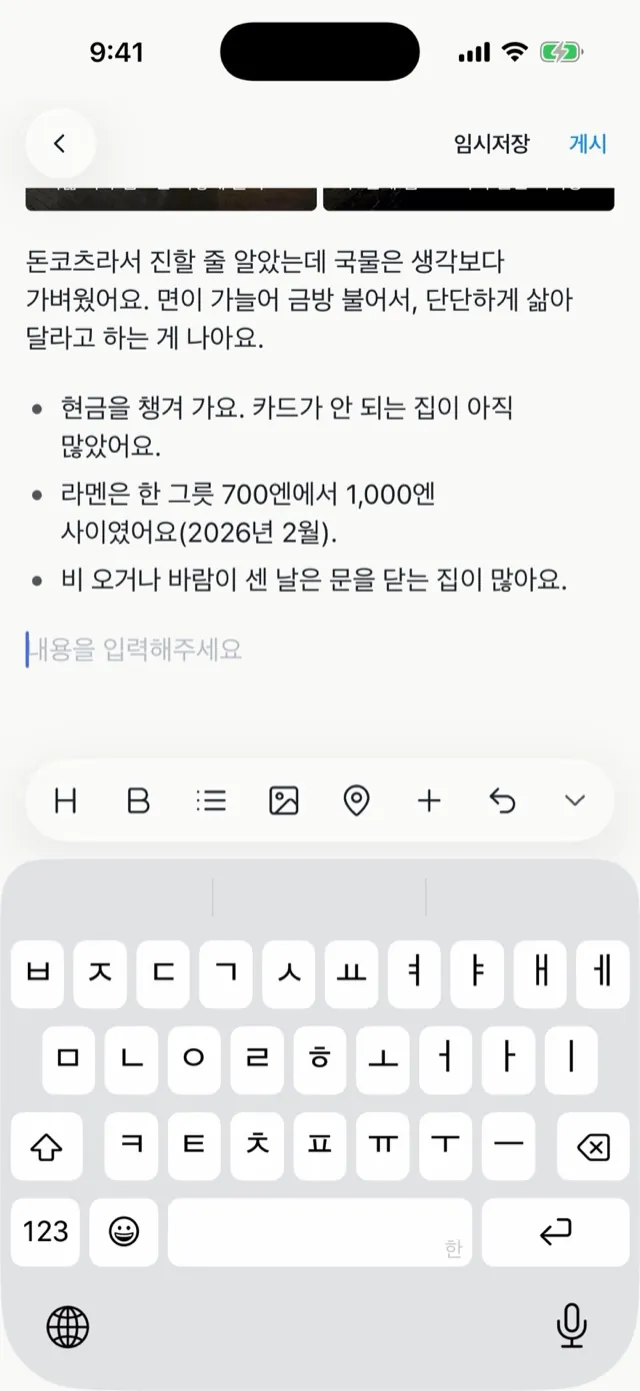
While you type, a toolbar floats above the keyboard: heading, bold, list, photo, place, route, link, + and undo. With the keyboard down, only photo, place, route, link and + remain.
- Heading: a line that divides the post, like Day 1 or a place name. Up to 40 characters.
- Bold: only for the one phrase a reader must remember.
- List: things that sit side by side, like what to bring or tips.
Type / on an empty line to see everything you can add. Press and hold a paragraph or photo, then drag it to reorder.
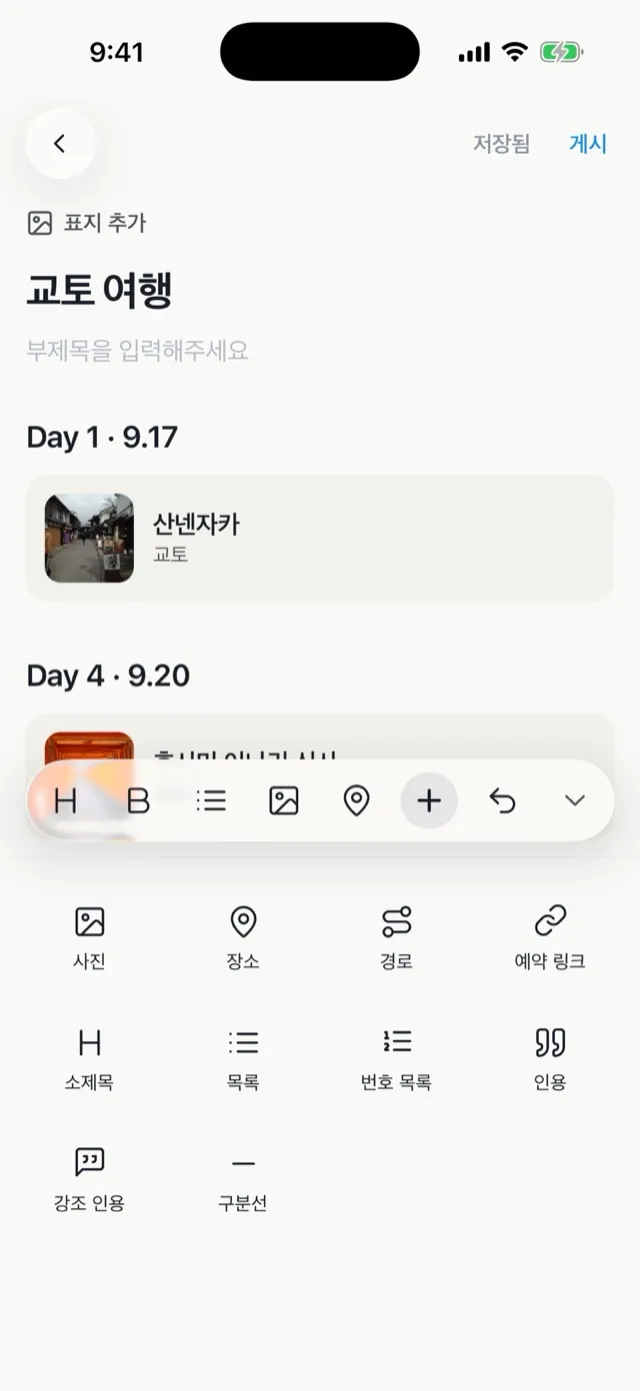
+ More
Tap + on the toolbar and a panel opens where the keyboard was. It holds only what the toolbar does not.
| Item | Use it for |
|---|---|
| Numbered list | Things in order, or what to do next time |
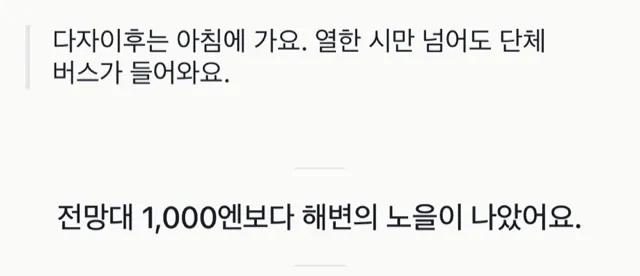
| Quote | Something you heard there, or a line from a sign |
| Pull quote | The one line you most want to say in the post |
| Divider | When the day or the story changes |
| Align center | A short paragraph you want to stand apart, like a closing line |
Align center appears when the cursor is in the body. Pick a writing tool and the keyboard comes back so you can keep typing.
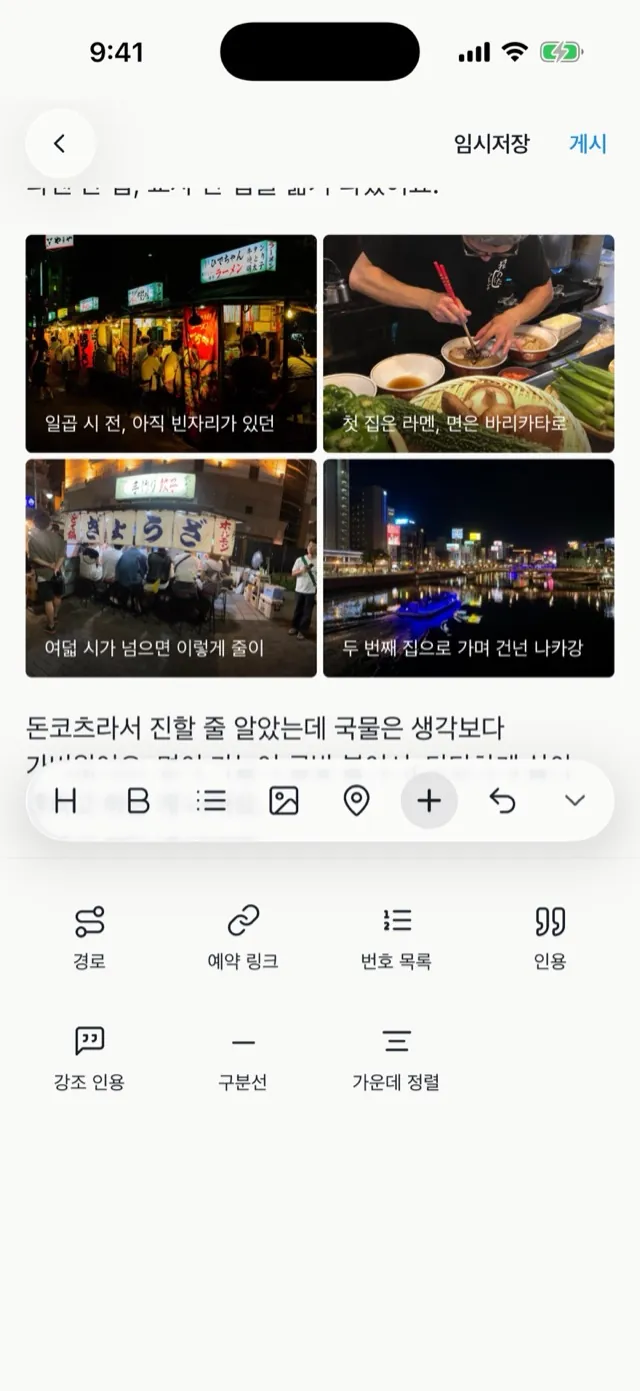
Photos
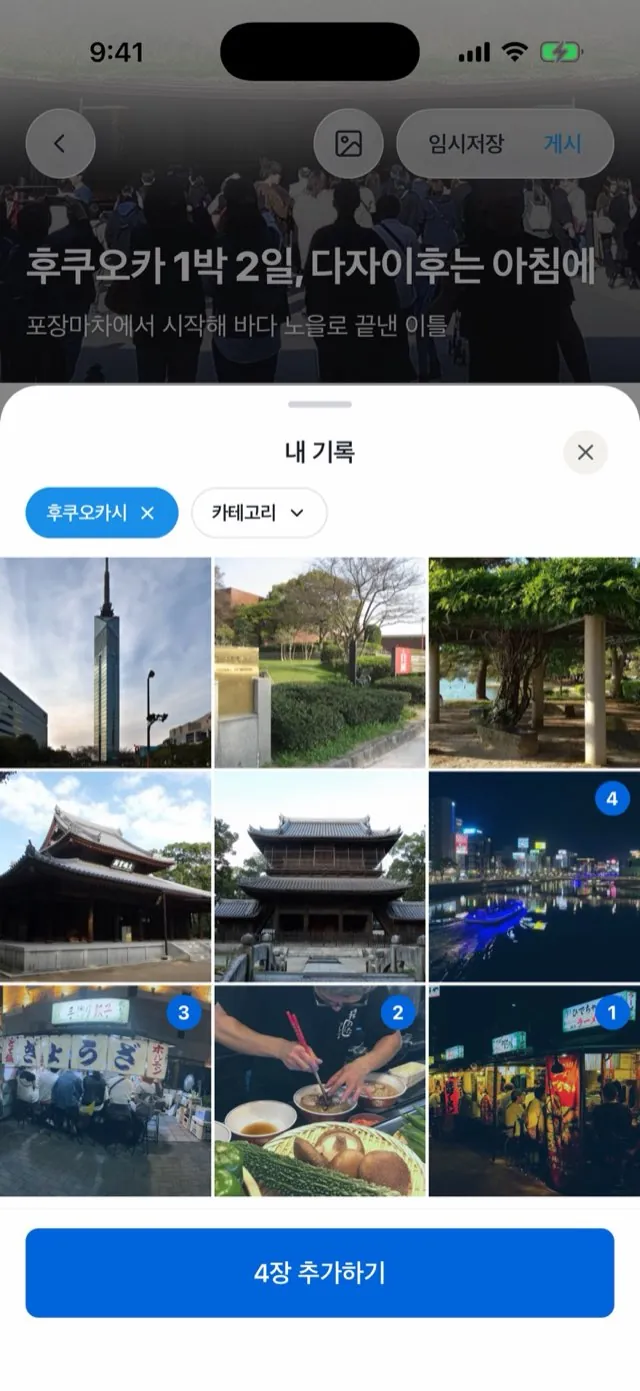
Body photos come only from your records (photos you uploaded). To use a photo from your library, upload it first with [Upload photos], the first cell of the sheet. You come back to the editor with that photo selected first.
- Pick up to 10 at a time and tap [Add N].
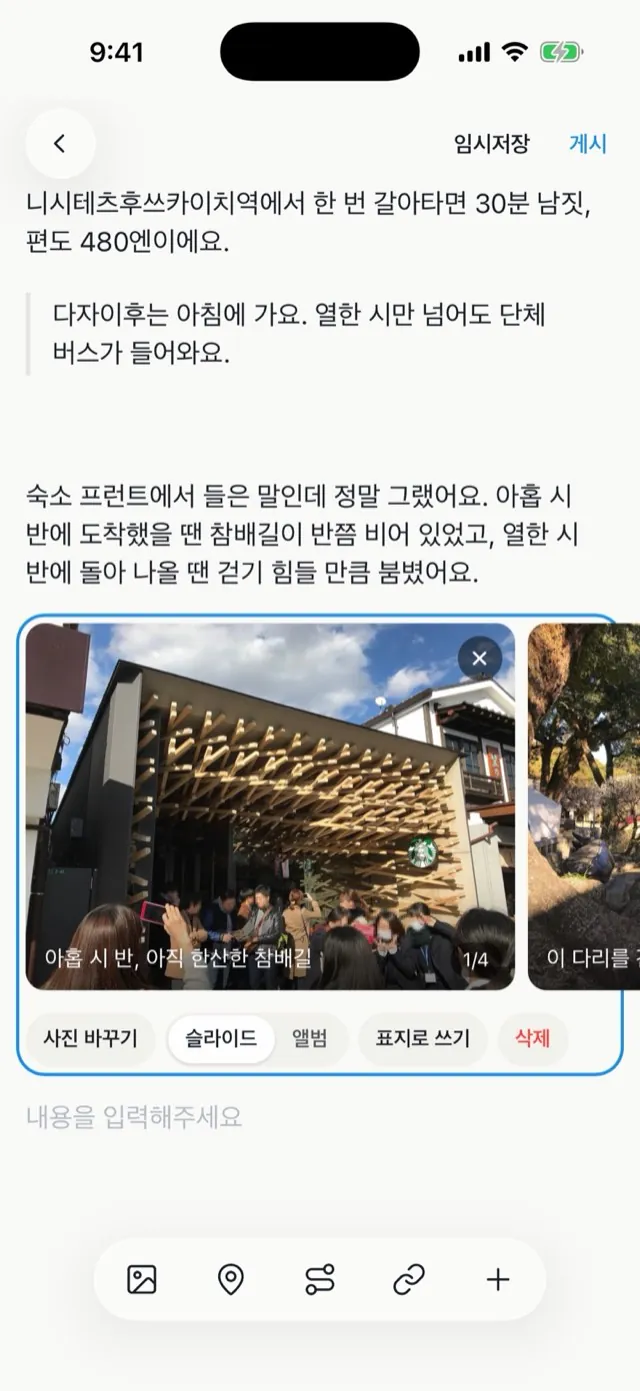
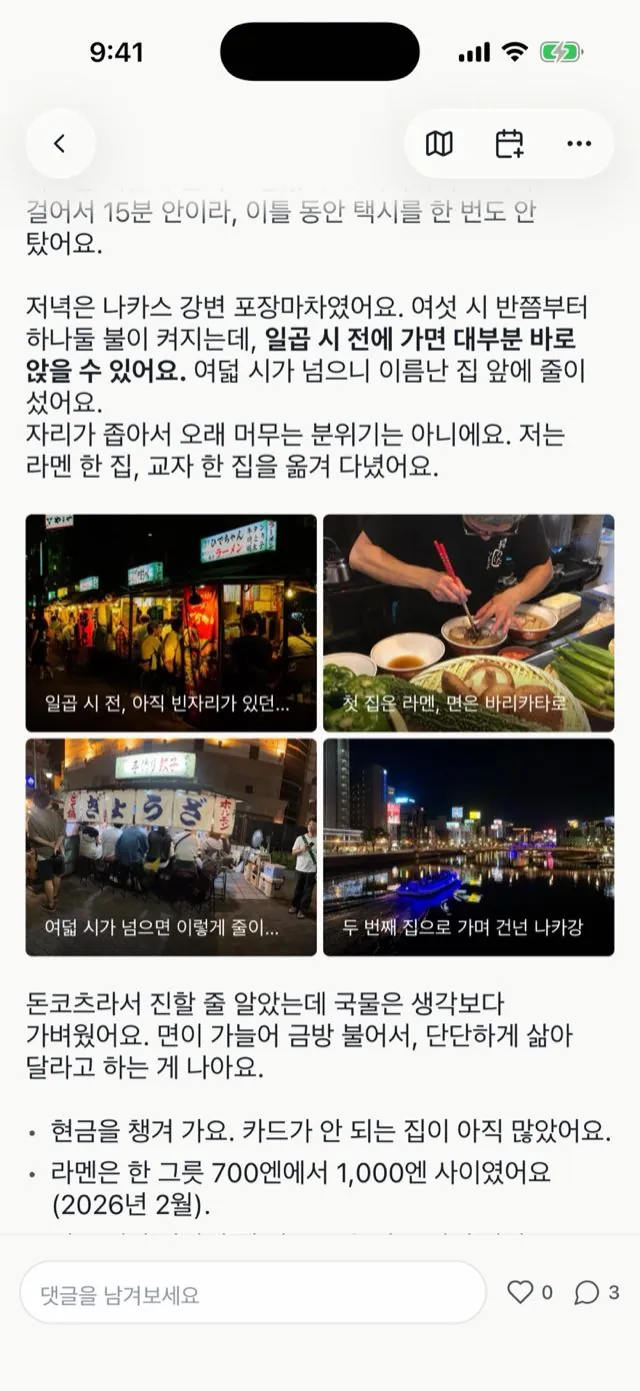
- With two or more, tap the photos and choose Slide or Album. A slide scrolls sideways; an album shows two side by side.
- A caption sits inside the photo at the bottom. It takes 60 characters, but a slide shows two lines and an album one, so keep it short.
- Tap a photo for [Change photos], [Slide | Album], [Use as cover] and [Delete].
Write what the photo cannot say. "Cross this bridge and you reach the main hall" tells more than the bridge's name.
Place cards
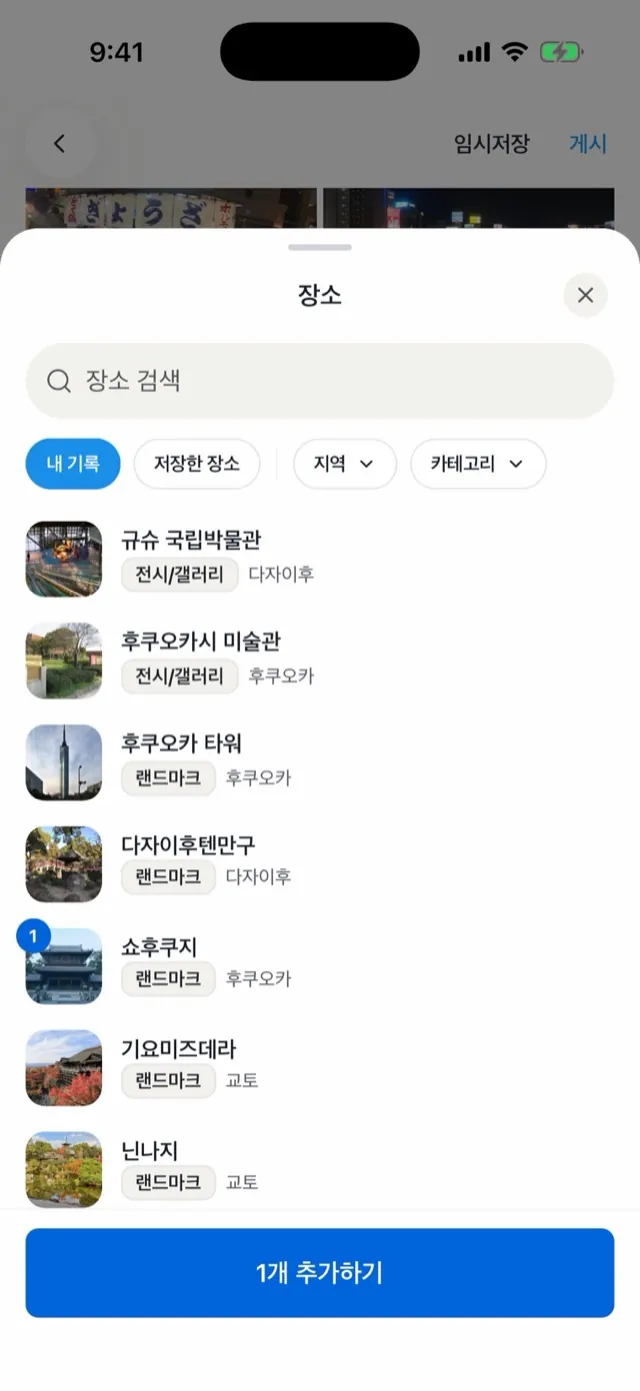
Tap [Place] on the toolbar for the My records and Saved tabs. Type in the search box to see places already on Flyve right away; tap search on the keyboard to look on Kakao and Google too. Pick several and tap [Add N] to add the cards.
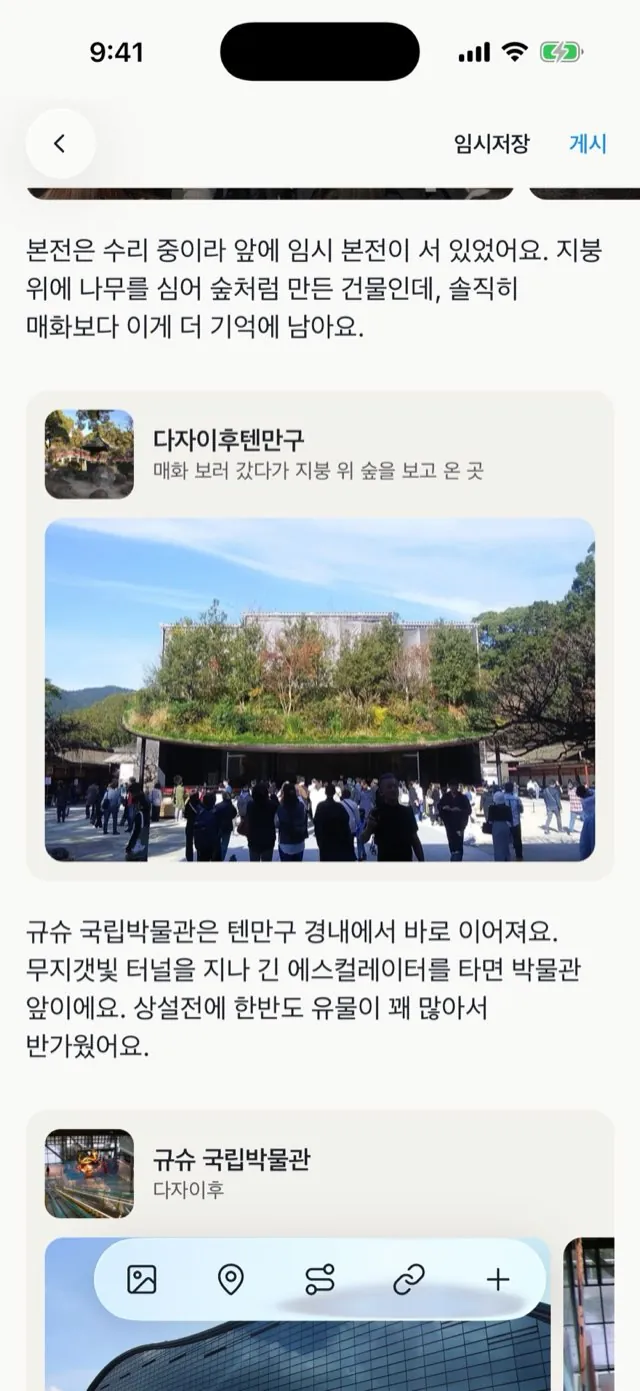
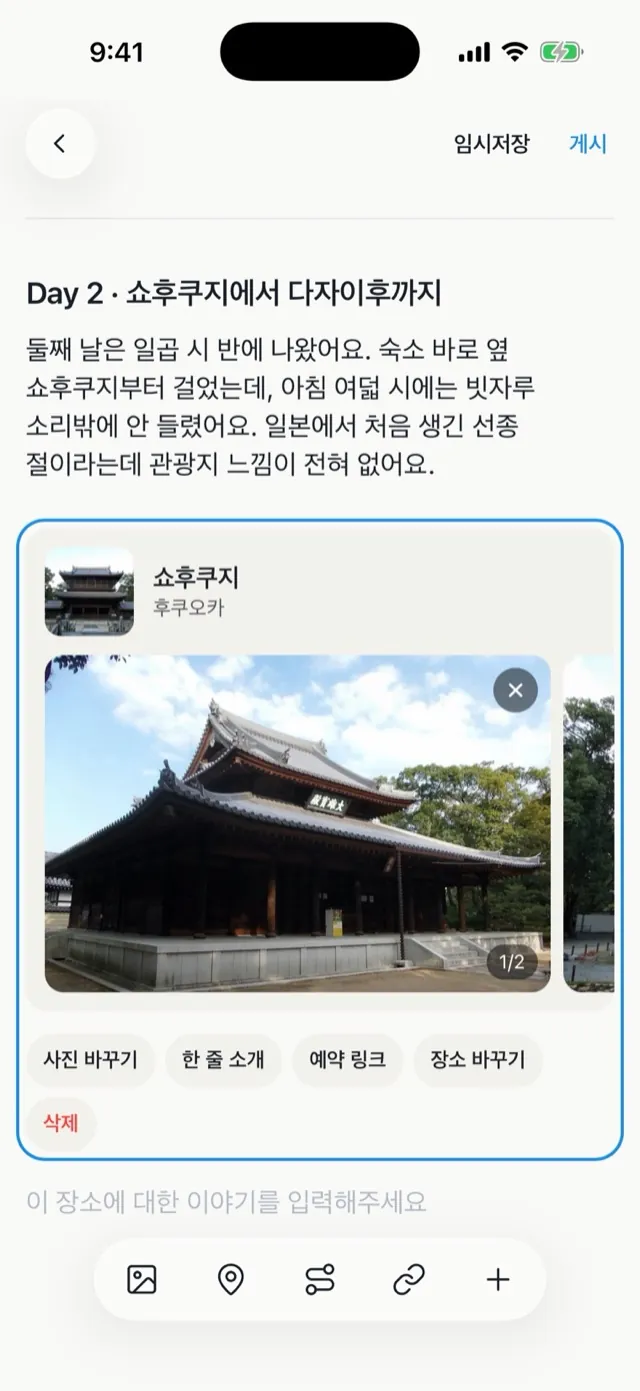
Tap a card for [Add photos], [One-line intro], [Booking link], [Change place] and [Delete].
- One-line intro: the one line under the place name, up to 30 characters. Left empty, the area and type show instead (for example, "Chuo-ku, Osaka · Food").
- The place's story: write it on the line right under the card. Prices, closing days, the best time to go: what a reader can use right away.
- Add photos: attach photos of that place to the card. If you have records there, they are attached from the start and the button reads [Change photos].
Routes
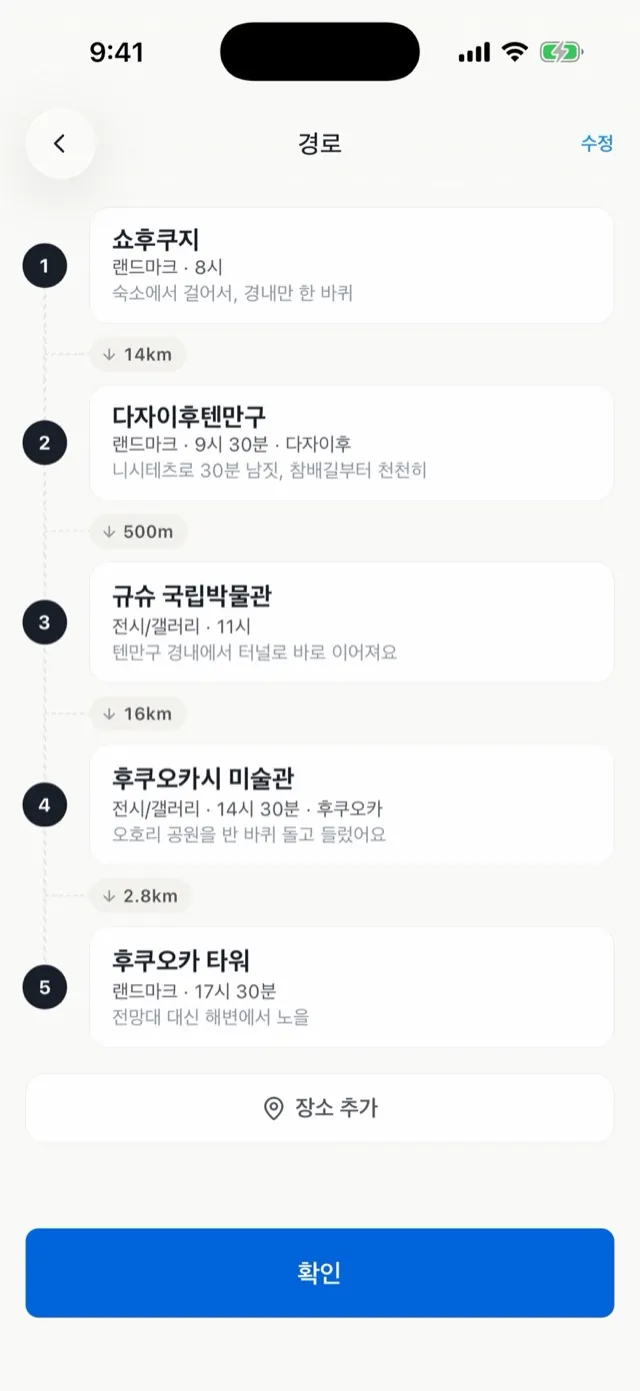
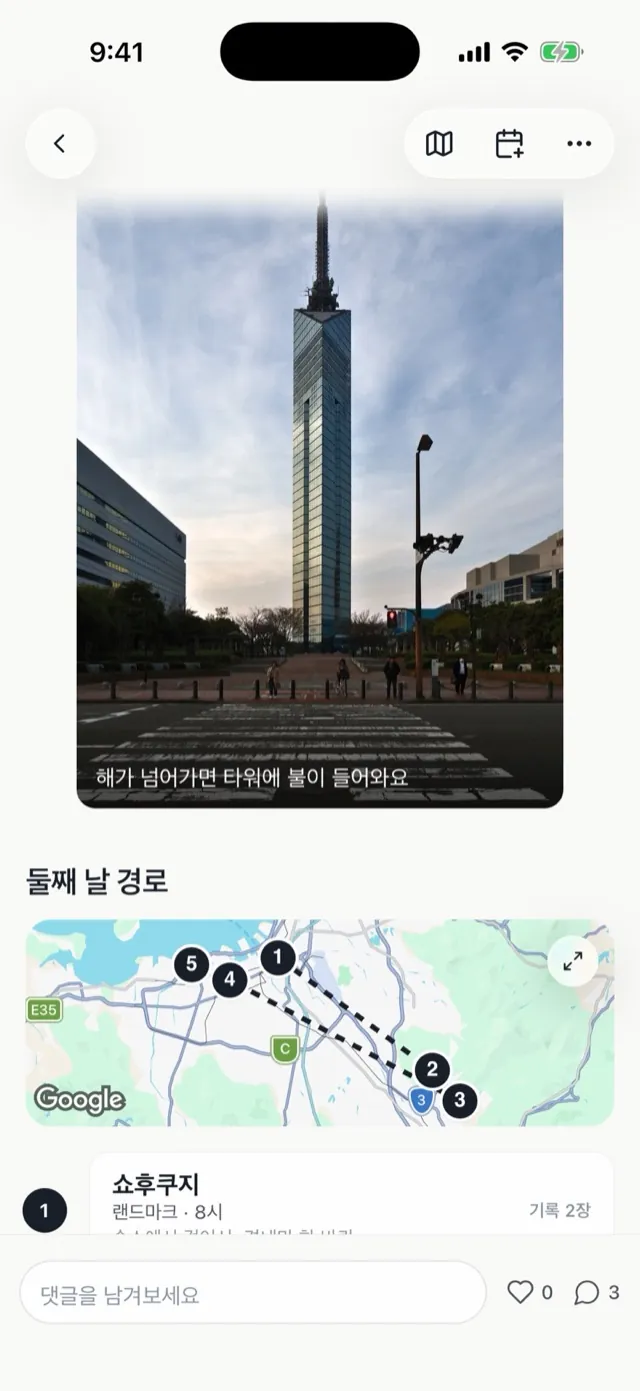
A route shows a day's path in order: a map with numbered pins on top, the places below, and the straight-line distance between them.
- Tap [Route] on the toolbar.
- Use [Add place] to search and add places in order. You need at least two.
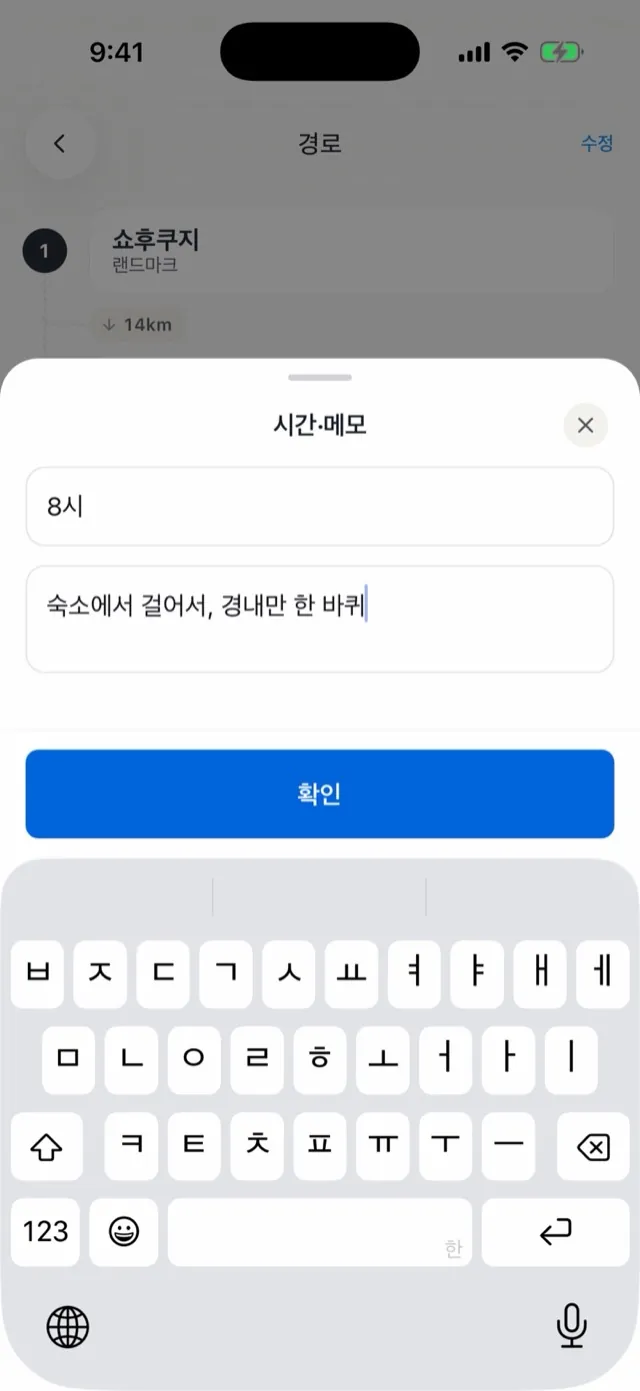
- Tap a place for [Add time and note], [Change place] and [Delete]. Time takes up to 20 characters, like "around 8:30", and the note up to 80.
- When you are done, tap [Done] to go back to the post.
A route holds up to 30 places. Tap a route in the post and choose [Edit route] to change it.
Booking links
You can add only product pages of partner booking sites.
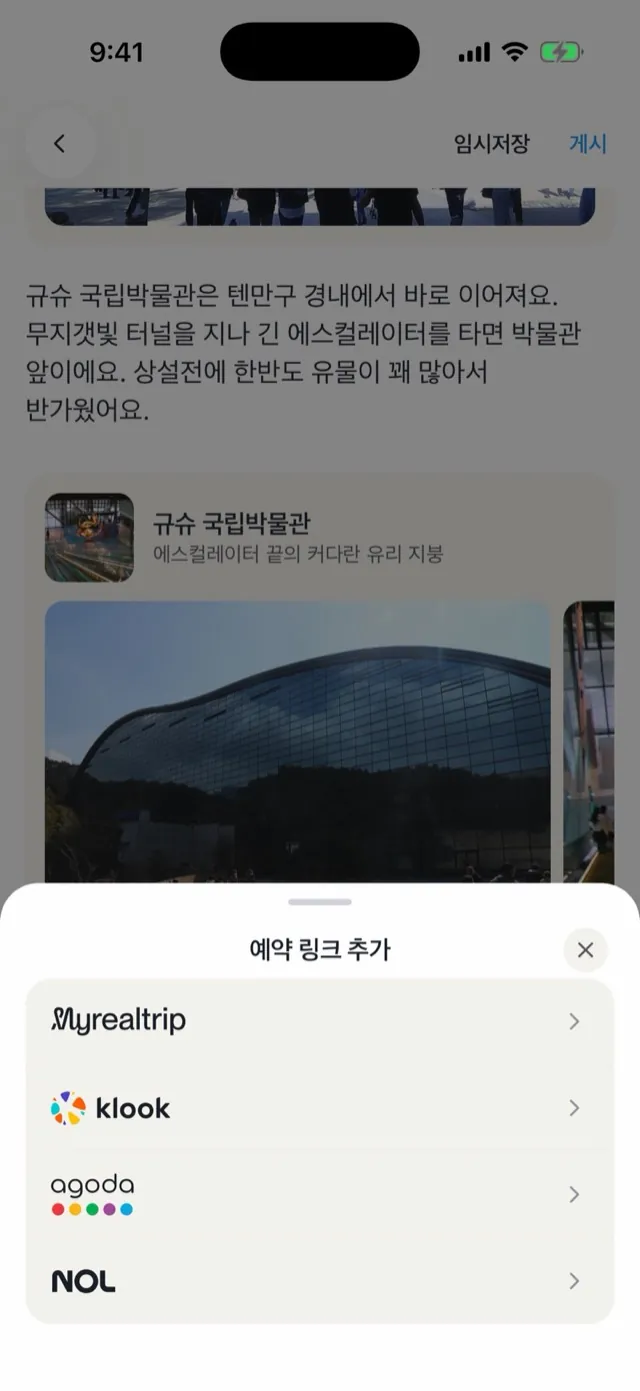
- Tap [Link] on the toolbar to open the booking link sheet, and pick a site.
- Find the product page in the in-app browser and tap [Add this page].
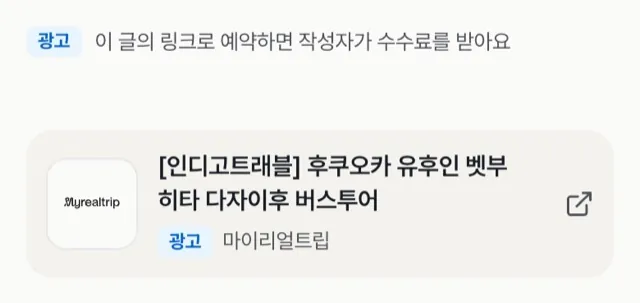
- It goes into the post as a booking card.
Added from a place card's [Booking link], it sits right under that card. Booking, payment and sign-in pages, and addresses that carry another affiliate tag, cannot be added. Tap the button on the product page.
- With a booking link, the card shows Ad and a line above the post says "The author earns a commission on bookings made through links in this post." You cannot remove it.
- A post cannot start with a booking link.
- A post can hold as many booking links as it has places, and at least 10: a post with 3 places can still hold 10, one with 12 places can hold 12.
- You may add products you have not used yourself, but do not write as if you had.
![[Add this page] on a product page](/flyver/guide/guide-08b-link-browser.webp)
Earnings and payouts
- You get 70% of the commission Flyve actually receives from the booking site (excluding VAT).
- You can withdraw it from the 1st of the month after Flyve receives it (Korea time).
- Withdrawals start at ₩50,000. Anything less carries over to the next month.
- Request between the 1st and 10th of a month and it is paid on the 25th. If the 25th is a holiday, it is paid on the business day before.
- We withhold 3.3% tax before paying. The withheld amount is rounded down to the nearest ₩10.
- Canceled or refunded bookings are taken out of your next earnings.
- If you stop being a Flyver, or your status is removed, you can request from ₩1,000.
- If you delete your account, everything you can withdraw is requested automatically, whatever the date or amount (when payout details are on file). Unconfirmed earnings cannot be paid.
- Bookings made through your post's links count toward earnings, in the app or on the web.
We cannot promise any earnings.
Drafts and leaving
While you write, the post is kept on this device first. It is saved to Flyve when you tap [Save draft] at the top, leave the editor, switch to another app, or right before publishing.
[Save draft] reads "Saving" while it saves and "Saved" when done. With no connection it reads "Saved on this device"; tap it to try again.
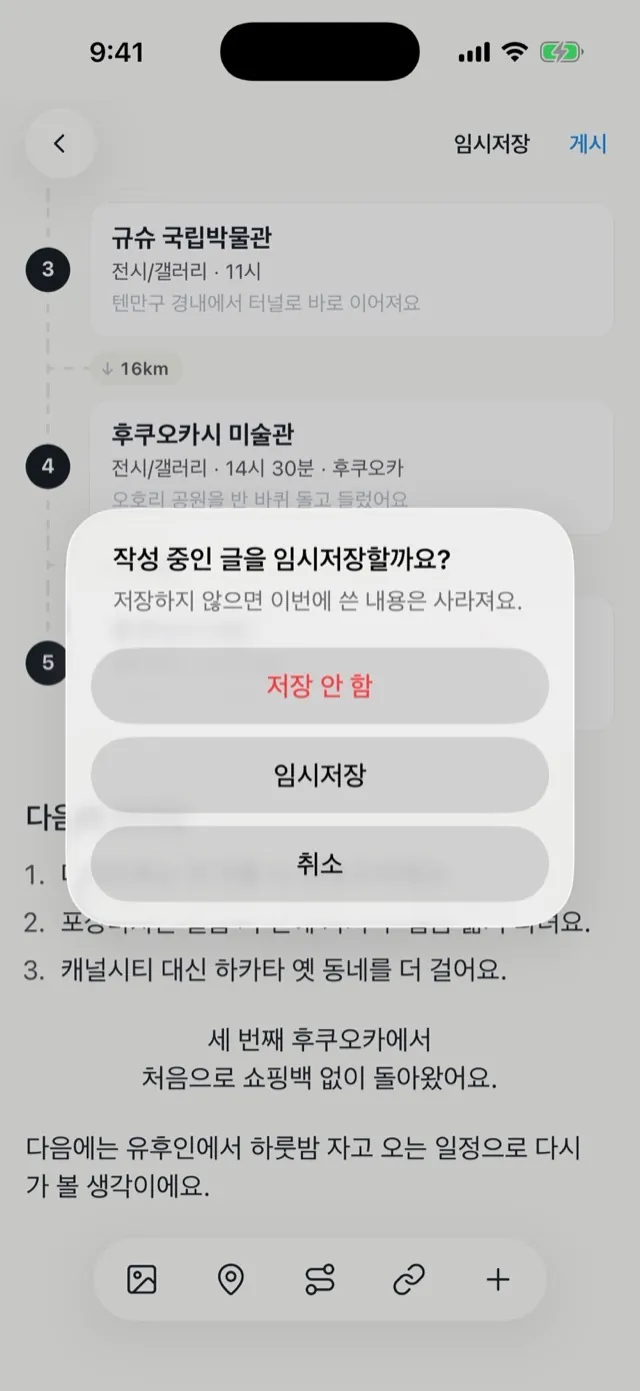
If something changed when you leave, you get three choices.
- Save draft: keep what you wrote. Open it again from Drafts.
- Don't save: drop this visit's changes and go back to how it was.
- Cancel: stay and keep writing.
When you edit a published post, readers see the old version until you tap [Update].
Publishing
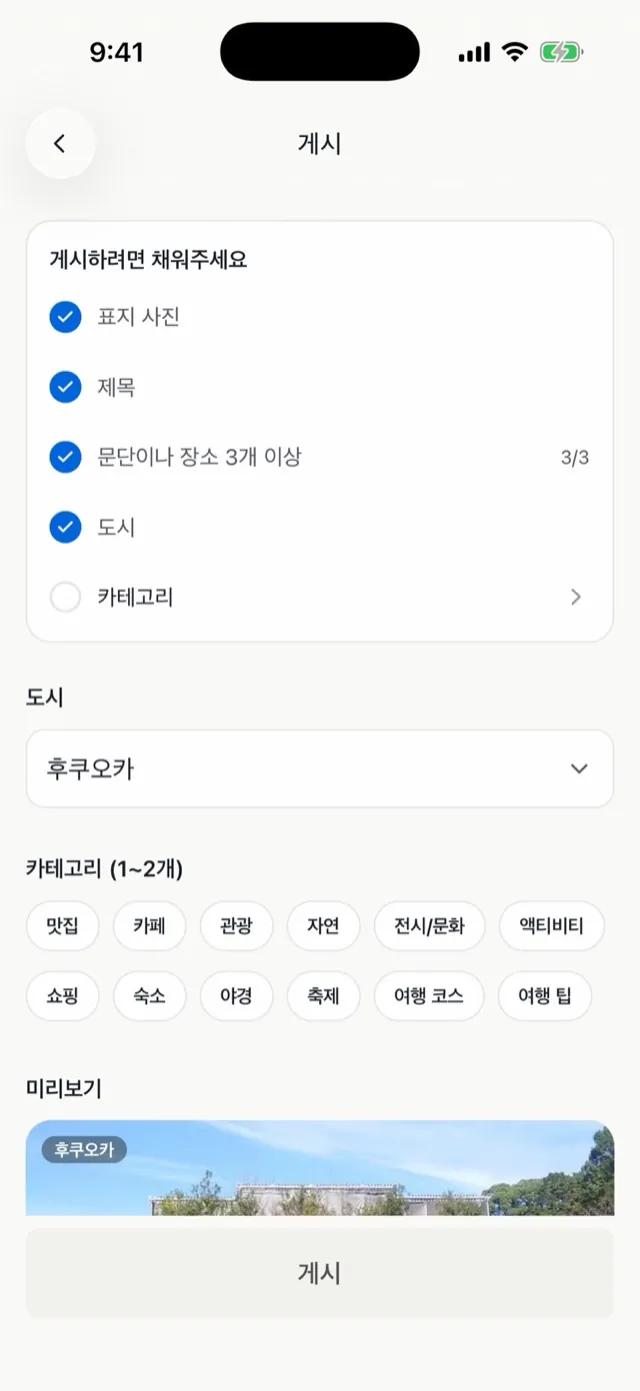
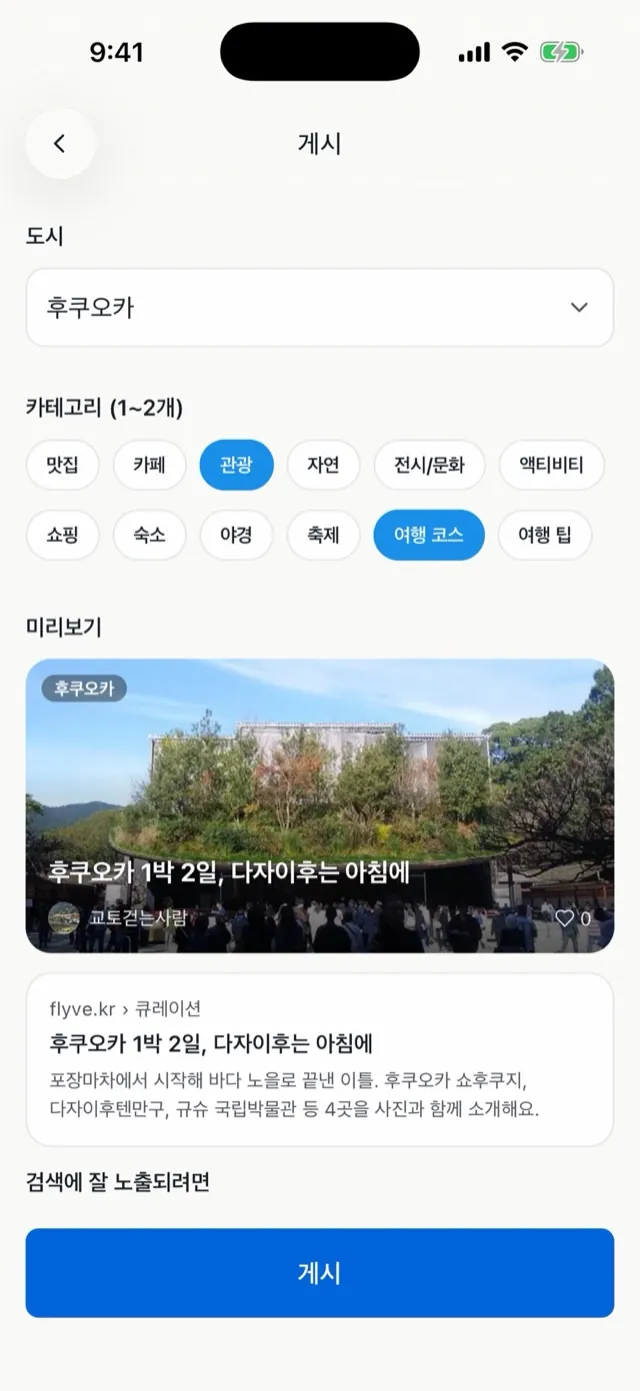
Tap [Publish] to choose a city and categories. You can publish once everything below is filled in; tap a row that is not to go straight to it.
- Cover photo
- Title
- At least 3 paragraphs or places (quotes, lists and routes count; photos, headings and links do not)
- City
- 1 or 2 categories
One more row appears only when the post starts with a link, has too many booking links, or has a word the title cannot use.
Categories: Food, Cafe, Sights, Nature, Art & culture, Activities, Shopping, Stay, Night views, Festivals, Itineraries, Travel tips. Under the search preview you see tips like putting the city in the title and a one-line intro for every place.
A published post goes up on the Flyve app and flyve.kr together.
Posts that read well
Travel posts people read to the end are not the ones with the most information. They are the ones where you can see the writer.
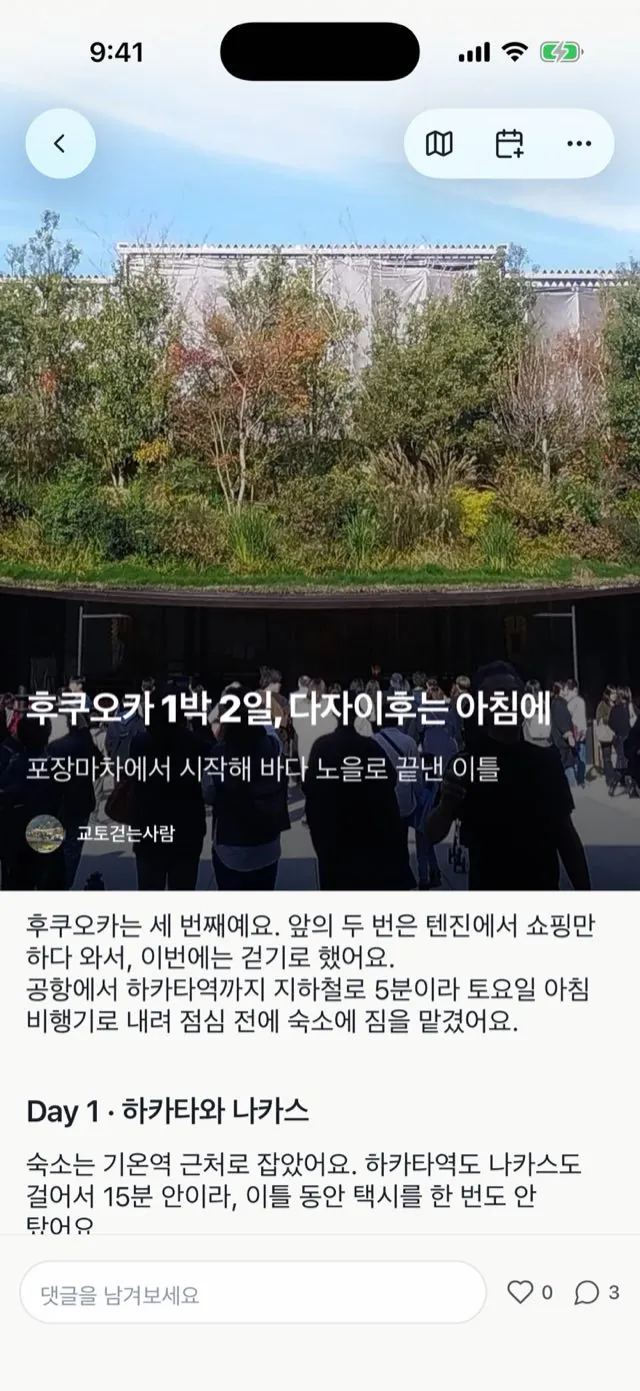
- Keep the title under 25 characters. A city name plus one specific thing, like "Fukuoka in two days: Dazaifu in the morning".
- Open with your own situation. Why this trip, what was different this time. Opening with a city introduction reads like a brochure.
- Two or three sentences a paragraph. One thing per sentence.
- Numbers where the reader has to decide. What time to go, how much, how long it takes. Put when you went next to a price.
- Say what disappointed you too. The places you skipped, and why, help readers.
- Quote what you heard. One line from the front desk or a companion makes a scene.
- Captions say what the photo cannot. What time it was, how much it cost.
- Cut the adjectives. "All I could hear was a broom" says more than "beautiful and serene".
- Bold three or four times a post, one pull quote.
- End short. No lesson; your next plan or a line back to how you began is enough.
Better to avoid: "the charm of", "unforgettable", "perfect", "a must-visit", lists of three, an exclamation mark on every sentence.
Rules to keep
The operating policy and the Flyver terms decide. These are the ones that come up most while writing.
Places you went, words you wrote
- Put only places you actually visited in place cards and routes.
- Write the post yourself. Spell checkers and translators are fine.
- Use only photos you took or have permission to use. No promotional photos of shops, booking site product photos, other people's photos or map captures.
- If someone else's face is clear, get their permission or blur it.
Ads and payment
- Leave out places that gave you money or anything free (meals, stays, entry, expenses).
- We do not accept posts written for pay.
- Do not cover your own or your family's business, or a place you had a contract with in the last 12 months.
- Do not ask for anything in return in the name of a Flyver.
Links and wording
- Add links only as booking link cards. Do not put addresses, discount codes or referral codes in the body or comments.
- Do not offer gifts for bookings or claim a link is the only lowest price. "I booked through the link below" is fine.
- Flyve's booking links are for use inside Flyve only.
- You can write about bad experiences. Keep facts apart from opinion, and do not single out individual staff.
- You cannot hide or delete comments on your post. Report a comment if it is a problem.
Breaking these leads to a warning, then a posting restriction for a set period, then removal of Flyver status. We tell you before a restriction or removal and give you 7 days to explain.
The full rules are here: Operating policy · Flyver terms
Back to top